


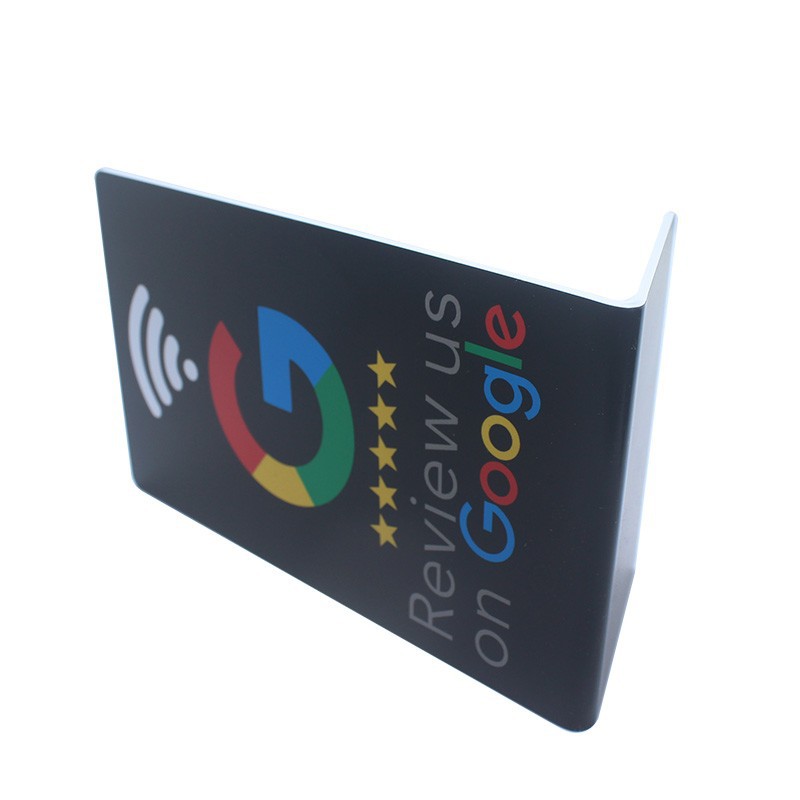


RFID Google Review Sign

How to Generate Your Google Review Link
- Log into Google Business Profile
Go to Google Business Profile Manager
Sign in with the account that manages your business.
2. Choose Your Business Location
If you manage multiple locations, pick the one you want reviews for.
3. Find the "Ask for reviews" Option
- On the dashboard, look for "Get more reviews" or "Ask for reviews".
- Google shows you a short URL like:
- https://g.page/r/XXXXXXXX/review
4. Copy the Link
- This is the direct link customers will use.
- When they open it, it takes them straight to the review form for your business.
5. Use the Link
- Program it into an NFC tag (so tapping opens the review page).
- Or print it as a QR code on receipts, cards, signs, or review stands.
Step-by-Step: Encoding a Google Review Link into NFC Tag
1. Prepare the Items
- Blank NFC tags (like NTAG213/215/216 stickers, cards, or stands).
- A smartphone with NFC (Android or iPhone).
2. Install an NFC Writing App
For Android: NFC Tools (by wakdev) – Free, very popular.
For iPhone: NFC Tools (same developer).
3. Get Your Google Review Link
From your Google Business Profile → copy the review link (looks like https://g.page/r/XXXX/review).
4. Open NFC Tools
- Tap Write.
- Tap Add a record → choose URL / Web link.
- Paste your Google Review link.
- Tap OK / Save.
5. Write to the NFC Tag
- Hold the NFC tag close to the back of your phone.
- App will write the link into the chip.
- Done
6. Test It
- Tap the NFC tag with your phone.
- It should open the Google Review page directly.
Hot Tags: rfid google review sign, China rfid google review sign suppliers, factory, Anti Metal NFC Sticker, NFC RFID Key Fob, RFID Key Card, NFC Coin Card, Printed RFID Cards, NFC PVC Cards
Send Inquiry
